In short
Billing waits for PODs that already sit on a driver's phone, and detention is lost without gate times. What a simple web upload needs, and what to watch for.
The load delivered on Tuesday. The signed proof of delivery (POD) is a photo on the driver's phone, maybe sent to a group chat, maybe to someone's personal email, maybe still waiting for the driver to remember. Billing cannot invoice without it, so the invoice waits. And when the receiver held the truck for three hours, nobody wrote down when it got through the gate, so the detention charge (the fee for waiting past the free time) gets written off.
The usual answer is "get the drivers on an app". Owner-operators who haul for several firms will not install another one for a single load, and many company drivers already juggle an ELD app and a TMS app. There is a simpler route: a web page the driver opens from a text message. No app store, no password. This guide walks through what that page needs, step by step, and the traps we would check for before building one.
Step 1: a link per load, sent before delivery
The single most useful thing an upload can do is already know which load it is for. A photo with no load number is the reason someone calls the driver.
- One link per load, carrying the load or PRO number, sent by text when the load is dispatched or when the driver is assigned.
- The link opens straight to that load, showing the pickup and delivery addresses so the driver can see it is the right one.
- The link is a token, not a login. It should be long and random, so it cannot be guessed, and it should expire a set time after delivery.
- A fallback for drivers without the link: a short list of their open loads, or a field for the PRO number.
Ask yourself: who sends the link today? If your dispatchers already text drivers the load details, the link goes in that same message.
Step 2: the photo, taken on the phone
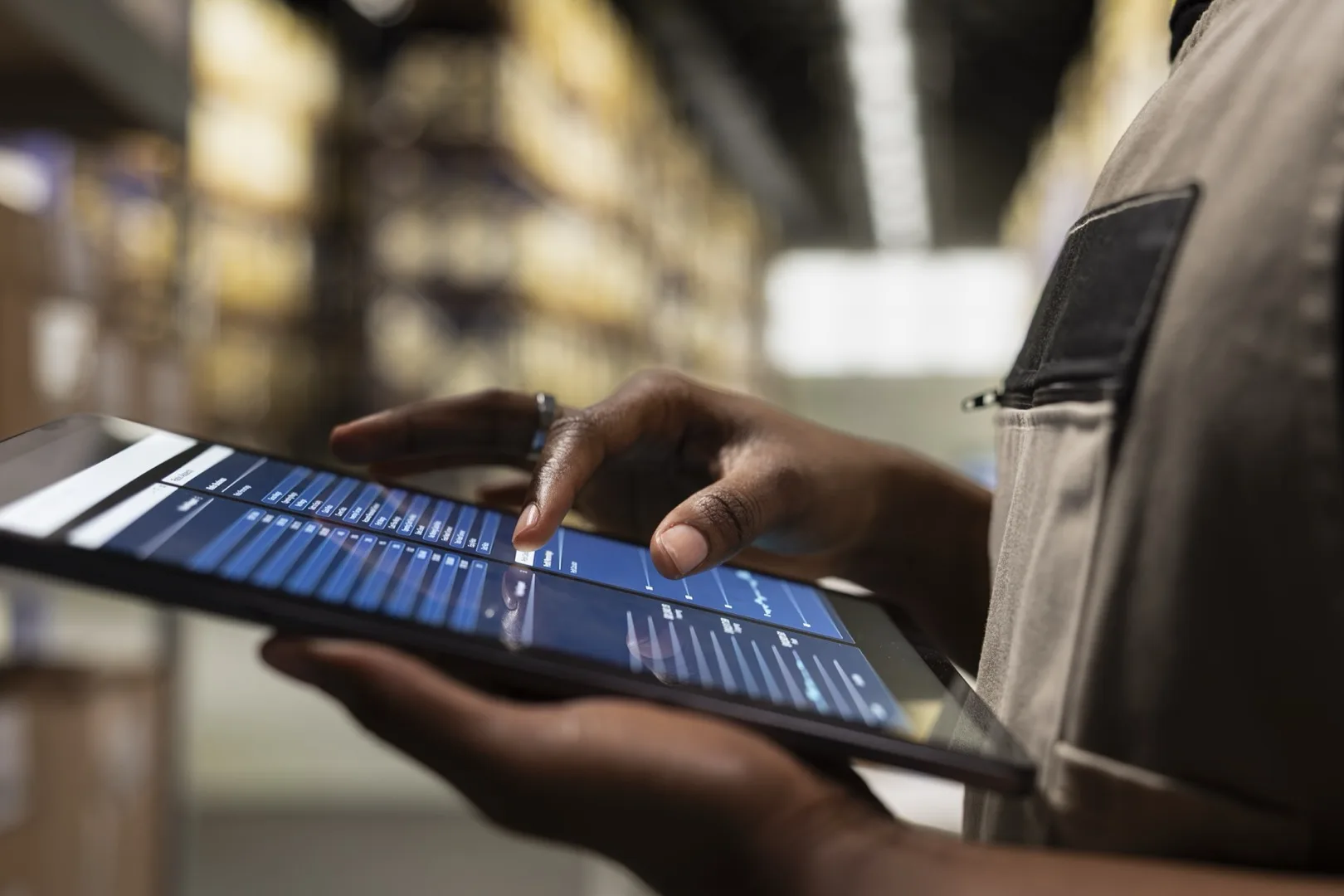
A web page can open the phone's camera directly. A plain file input that accepts images lets the driver either take a new photo or pick one from the gallery. That second option matters, because many drivers will already have taken the picture.
- Several pages in one upload. A POD, a BOL (bill of lading) and damage photos often belong together.
- A preview before sending, so the driver can retake a blurry or cut-off shot while still at the dock.
- Labels per photo: POD, BOL, damage, seal, other. That saves the office from opening every file to see what it is.
- Big buttons and plain words, in the languages your drivers read. The page will be used with one hand, outdoors, often in gloves.
Step 3: timestamps you can actually show someone
Detention disputes come down to times. "The driver says he waited three hours" is weak. A recorded gate-in and gate-out time is much stronger. So the page has two more buttons besides the upload: Gate in and Gate out.
- Record the server's time, not only the phone's. The phone's clock can be wrong or changed. Save the time the phone reports and the time your server received it.
- Location, with permission. A browser can share the phone's location if the driver allows it, and only on a secure (HTTPS) page. Save the coordinates with each tap, and handle "no" gracefully: the tap still counts.
- Who, what and when for every action. Each upload and tap gets a record of the link used, the time and the device. That record is what you show in a dispute.
Gate times do not decide what you bill. Your rate confirmation and your customer's terms do that. But they turn a guess into a record.
Step 4: an offline retry, because docks have bad signal
Warehouses and port terminals are often the worst places for mobile signal. If the upload fails and the driver drives off, the POD is back on the phone where it started.
- Save first, send second. When the driver taps send, keep the photos and taps in the browser's own storage, then try to upload.
- Retry automatically when the connection comes back, and again the next time the page is opened.
- Show the state honestly: "waiting for signal", "sending", "received". A driver who sees "received" will not send it again by WhatsApp to be safe.
- Accept duplicates without making a mess. If the same photo arrives twice, keep one.
This is also the part most worth testing on a real phone at a real dock, not only in an office on Wi-Fi.
Step 5: where the file lands for billing
The point of all of this is that billing sees the POD the moment it is uploaded. So decide where it goes before anyone writes code.
- On the load, in a simple office view: the POD, the BOL, damage photos and gate times, side by side.
- A note to billing when a POD arrives, by email or in whatever tool billing already watches.
- A missing-POD list: loads delivered with no POD after a set number of hours, for someone to chase that day rather than at month end.
- A detention flag when gate-out minus gate-in is longer than the free time on that load.
- Your TMS later. Most TMSs take documents by import, an email-in address or a direct connection. Start with the simple view, then send files into the TMS once the upload has proved itself.
What to watch out for
Image size
Modern phone cameras produce large files, and a five-page POD over a weak signal is exactly the upload that fails. Resize and compress photos in the browser before sending, to a size where the text and signature are still easy to read. In Estimonia, our own app where people photograph an item on their phone, uploads are resized to 2000px before they are stored. A similar limit works for paperwork, but test it on your own PODs: a small-print BOL may need more.
Signatures
There are two ways to capture the receiver's signature: a photo of the signed paper POD, or a signature drawn on the driver's screen. A photo of the paper is what most drivers already do and what most receivers already sign. A drawn signature needs the receiver to handle the driver's phone. Before choosing, ask your customers which one they accept as proof when they dispute an invoice, and build that.
The consignee's personal data
A POD is not only a document about freight. It carries the receiver's printed name and signature, sometimes a phone number, and with a residential delivery a home address. A photo may also show people at the dock. Under the GDPR (the EU's data protection law), that is personal data, and the same care makes sense in the US and Türkiye under their own privacy rules.
The GDPR principles that matter most here are data minimisation (collect only what you need) and storage limitation (keep it only as long as you need it). In practice:
- Strip the hidden photo data. Phone photos can carry GPS coordinates and device details inside the file. Remove them when resizing, and keep the location you asked for as a separate field.
- Limit who sees what. A driver's link shows only that driver's load and expires. The office view is behind your staff login.
- Store files privately, not at public URLs, and back them up.
- Set a retention period for PODs and photos, agreed with your finance team, and delete files once it has passed.
- Say it in your privacy notice: that PODs and delivery photos are collected, why and for how long.
Questions to ask before you build
- Where does a POD wait today, between the driver's phone and the invoice?
- Who will send the link, and from which system?
- What do your customers accept as proof of delivery?
- Where should billing see the file, and who needs to be told it arrived?
- How long must you keep PODs, and who may see them?
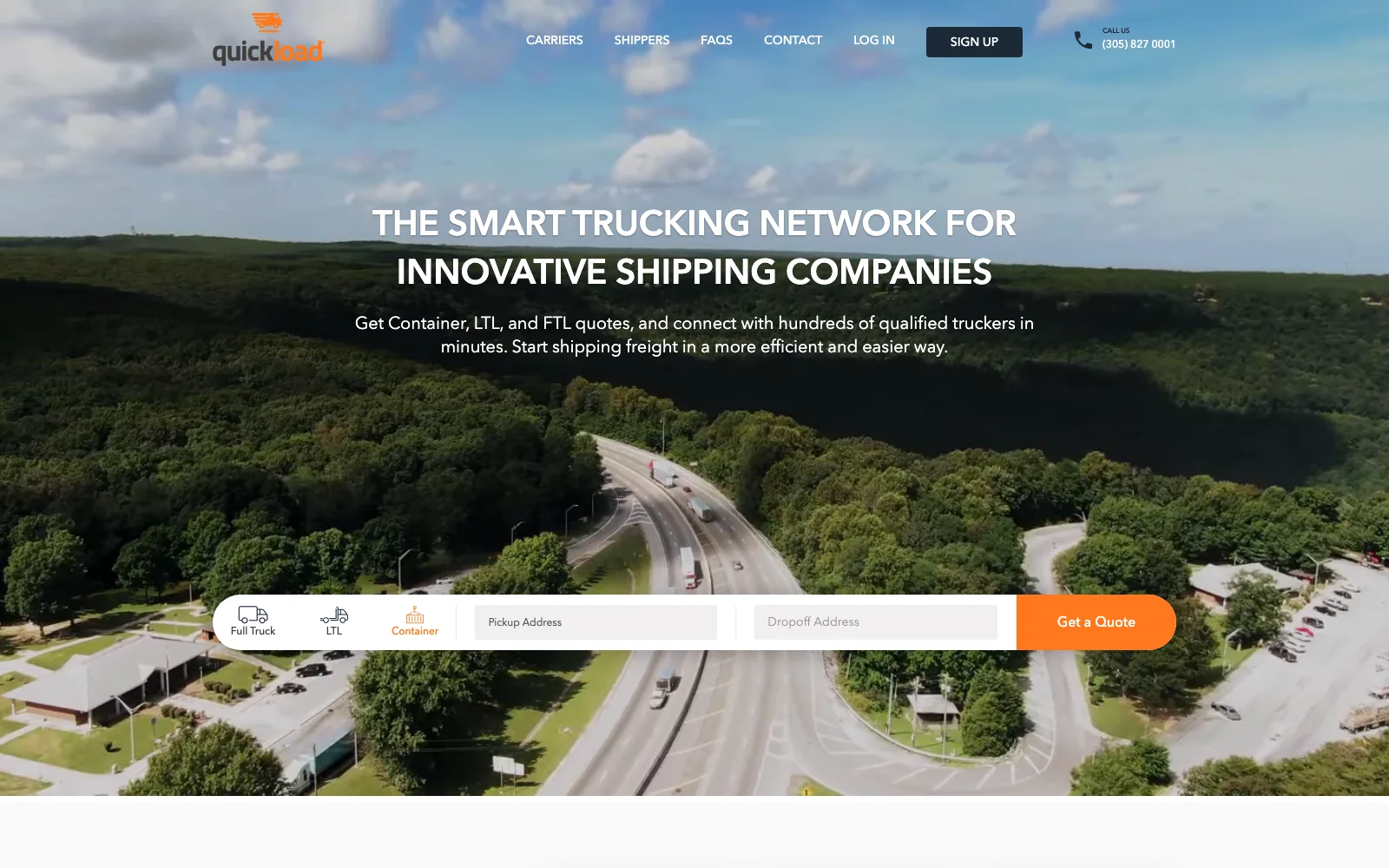
The pieces are not new. When we designed the carrier flow for Quickload, a Miami freight network, uploading the POD was one of its four steps: find loads, accept and assign a driver, update status, upload the POD and get paid. If you want those pieces put together for your drivers, at a fixed price agreed before any code, see our POD and gate-time upload.
FAQ
Frequently asked questions
Tagged