In short
Why a cleaned WordPress site gets reinfected, the nine things we check first, and how a real takeover of a hacked corporate site went.
The site was cleaned. The spam pages are gone, the redirect has stopped, the scanner shows green. Two weeks later the same thing is back. Most owners in this position conclude that the clean-up was badly done. Often it was done fine. It just removed what the attacker left on the site without closing the way they came in.
A hack is two things: the damage you can see, and the access that made it possible. Cleaning deals with the first. If the second is still open, or the attacker left themselves a spare key, they come back. Usually it's automated, so nobody even has to remember your site.
Below is what we check first, in roughly this order, and why each one matters. Then a short walk-through of a real takeover, BM Mobil, to show what the order looks like in practice.
Why cleaning alone fails
There are five usual reasons a cleaned WordPress site gets hacked again:
- A backdoor was missed. A backdoor is a small hidden file or a few lines of code that lets the attacker get back in. It's often tucked somewhere a scanner or a quick look skips.
- The attacker still has a login. An extra administrator account, a stolen password that was never changed, or an old session that's still valid.
- The hole they used is still there. An outdated plugin or theme with a known vulnerability, or a pirated ("nulled") premium plugin that came with hidden code from the start.
- The infection lives outside WordPress. On the hosting account, a neighbouring site on the same server, or the computer someone uses to log in.
- Nothing changed afterwards. Updates are still skipped, file permissions are still loose, and nobody is watching for changes.
The checklist: what to check first
1. Take a copy before you touch anything
Back up the files and the database as they are, infected or not. WordPress's own "my site was hacked" guide recommends this snapshot before cleaning, so you have something to compare against and fall back on. Write down what you saw and when. That becomes your incident record.
2. Reset every way in, not only the WordPress password
Change the passwords for every access point: WordPress admin, SFTP/FTP, the hosting control panel (cPanel or similar), the database user, and the email account that receives password resets. Do it for every person who has access, not just you. Then replace the secret keys in wp-config.php with a fresh set from the WordPress key generator. That logs out everyone currently signed in, including an attacker with a stolen session. Turn on two-step login for administrators.
Change the passwords once more after the site is clean. WordPress's guide is explicit about this. If the passwords were changed while a backdoor was still active, the attacker may have read the new ones.
3. Go through the user list
Open Users and filter by Administrator. Remove any account nobody can explain: an old agency login, a former employee, a name you don't recognise, an account created on an odd date. Look at Editors and Shop Managers too. Then check the database itself, because a backdoor can create an admin that's hidden from the admin screen.
4. Hunt for backdoors where they usually hide
- The uploads folder (
wp-content/uploads). It should hold images and documents. A PHP file in there is a red flag. - Must-use plugins (
wp-content/mu-plugins). WordPress loads these automatically, and they don't show up in the normal plugin list, so they're easy to miss. - Theme and plugin files, especially
functions.php,header.php,footer.phpandindex.php. These run on every page, which makes them attractive targets. .htaccessfiles, in the root and in subfolders. They're often changed to add redirects that only show to visitors arriving from search engines.
For WordPress core, don't rely on the "reinstall" button in the admin. WordPress's guide explains why: installers overwrite existing files, and hacks often add new files. Replace wp-admin and wp-includes with fresh copies of the same version over SFTP. Then do the same for each plugin and theme, using clean copies from their official source.
5. Remove nulled and abandoned plugins
A nulled plugin is a paid plugin or theme with its licence check stripped out, shared for free. WordPress's hardening guide warns against installing plugins or themes from untrusted sources. A nulled copy is the clearest case: you have no idea what else was changed. Replace it with a licensed copy or remove it. Do the same with plugins that are no longer maintained, and delete anything that's deactivated but still installed. Deactivated code is still on the server.
6. Tighten file permissions and file editing
The hardening guide suggests 755 for folders and 644 for files as a starting point. Only wp-content needs to be writable by the web server. Add define( 'DISALLOW_FILE_EDIT', true ); to wp-config.php so nobody can edit PHP files from the dashboard. The guide notes this won't stop every attack, but it removes an easy one. Also block PHP from running in the uploads folder at the web-server level, so an uploaded file can't run as code.
7. Look beyond WordPress
On shared hosting, ask your host whether other accounts on the same server were affected. Check for other sites, old copies and test installs in the same hosting account. A forgotten /old or /test folder running an outdated WordPress is a classic way back in. WordPress's guide also recommends a malware scan of the computers used to log in, because some infections start with a trojan stealing FTP or admin passwords from the owner's own machine.
8. Find out how they got in
This is the step most clean-ups skip, and the main reason sites get reinfected. Server access logs, file modification dates and the plugin versions installed at the time usually point to the way in: a vulnerable plugin, a reused password, an exposed file. If you never learn how they got in, you can't be sure it's closed.
9. Then keep it current and watched
The hardening guide is blunt: older WordPress versions aren't maintained with security updates. Keep core, plugins and themes current, test updates on a copy first if the site takes orders or leads, keep dated backups stored off the server so you have copies from before any compromise, and use a monitoring tool that alerts you to changed files.
What this looked like on a real takeover
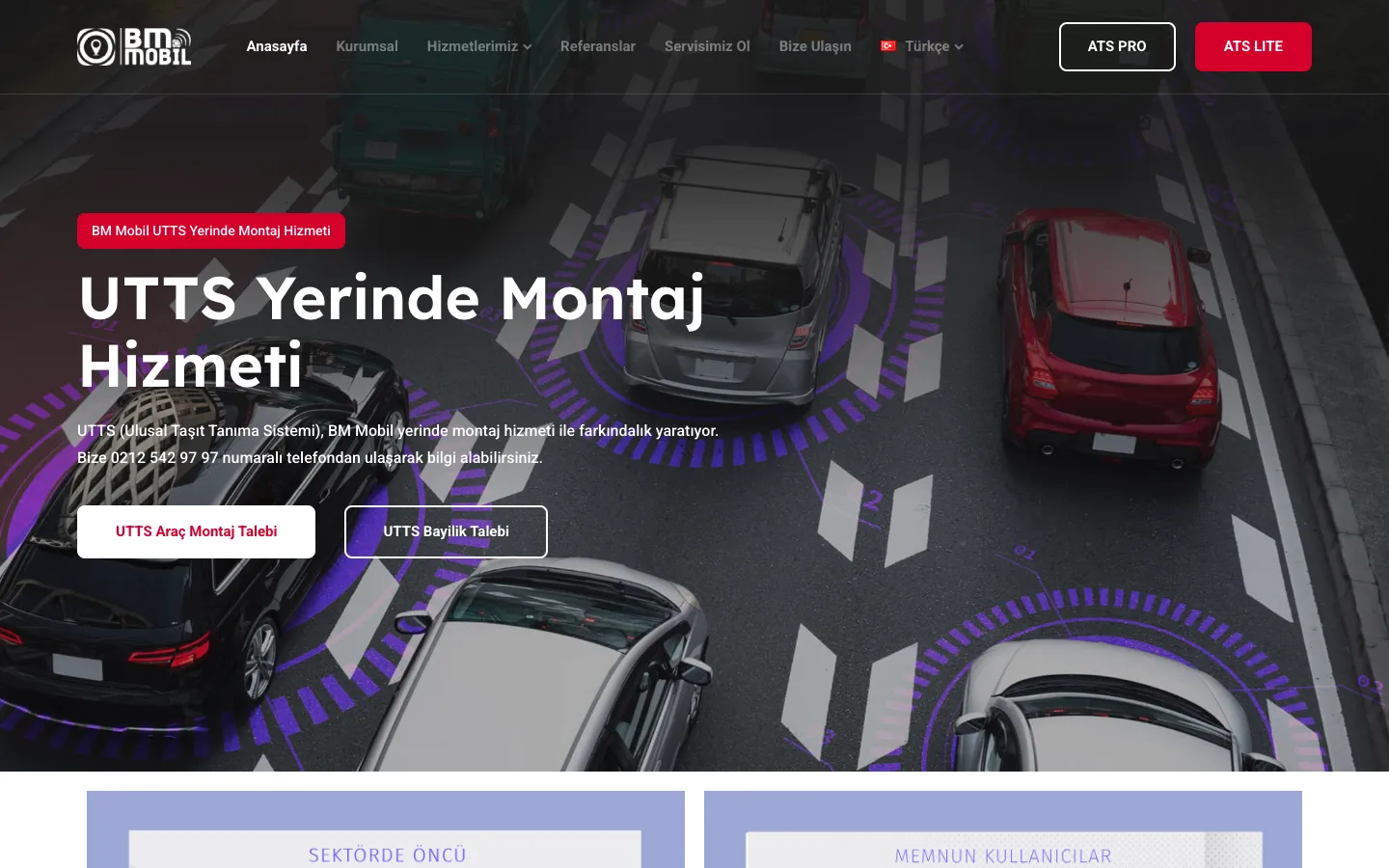
BM Mobil sells and installs vehicle tracking, fleet management and in-vehicle camera systems across Turkey. Its two-language corporate WordPress site had a security incident, and the agency that built it was no longer involved. The site ran on a paid theme and page builder, had been moved file by file from an older server, and was reachable only through the company's VPN.
This is the order we worked in:
- Regain control through a channel we could trust. We connected through the client's VPN and hosting panel and reset the admin passwords directly in the database, so control didn't depend on anything that might itself be compromised.
- Check before changing anything. We went through the uploads folder, must-use plugins and plugin code for planted files, and reviewed every plugin that talked to outside servers before deciding what stayed on.
- Close the common entry points. We applied the standard WordPress security fixes on the web server and inside WordPress, removed files that leaked server details, and added a security plugin for monitoring. A file uploaded through the media library can no longer run as code.
- Rank the rest instead of upgrading blind. Rather than a risky all-at-once upgrade, the client got a ranked, costed list of the remaining upgrades, with licensing and infrastructure decisions left to them.
The check after the takeover found no backdoors, and the site kept running normally throughout. A clean result is worth having too: it means the effort can go into closing entry points and planning upgrades, not into chasing hidden files.
Questions to ask whoever cleans your site
- How did the attacker get in, and what exactly did you change to close that?
- Which folders and files did you check for backdoors, and did you replace core, plugin and theme files with clean copies?
- Which passwords and keys were changed, and were they changed again after the clean-up?
- Which user accounts did you remove?
- Who is keeping the site updated from now on, and how will we know if files change again?
If the answers are vague, the site will probably be reinfected.
Where we fit
Taking over sites like this, including ones someone else built, is part of our WordPress maintenance work. We recover access and take a backup first, isolate and clean the site, find and close the way in, and lock it down. After that, the same engineers keep it running every month: updates tested on a copy before they reach the live site, daily off-site backups, and uptime checked every five minutes.
FAQ
Frequently asked questions
Tagged